“WordPress 7.0 is like a gut renovation of your apartment. The result can be wonderful, but the process is nerve-wracking”
WordPress 7.0: a fresh coat of paint or a real upgrade?
On February 20, the WordPress community got great news: the 7.0 Beta 1 update, followed by Beta 2 (February 26). I installed the beta right away, clicked around, tinkered with it — and I’m left with pretty mixed impressions. Some things genuinely delight and surprise me, some are downright annoying, and some will need months of real-world use with clients before I can say anything definitive.
The official release is scheduled for April 9, 2026, so there’s plenty of time for testing. But you can already see the direction WordPress is heading. And that direction is not for everyone.
What the community is saying
The mood in the community is mixed. In threads and comments, the same thought keeps coming up: people don’t like the overall direction WordPress is heading — the platform keeps growing features nobody asked for. But as long as it reliably gets client work done, everyone keeps using it. Business needs results, not holy wars about the perfect platform.
Some praise it, some hate it, some just keep working and turn a blind eye to the platform’s long-familiar shortcomings — a typical picture for every major release. Among the comments you’ll find an interesting observation: clients come in wanting to build an MVP on WordPress as a temporary solution, because it’s fast and cheap. You know, once it starts making money, we’ll move to something else. In reality, those projects then live for years, make decent money, and nobody moves anywhere — they stay on WordPress.
That’s a reality often ignored in technical discussions. WordPress isn’t alive because it’s perfect. It’s alive because it gets the job done. And 7.0 is an attempt to make it do even more — the only question is at what cost.
Admin panel: new colors, smooth transitions, and eye strain
Let me start with what I’m not thrilled about so far. WordPress 7.0 changes the look of the admin panel: a new color scheme and smooth transitions between pages with no reloads.
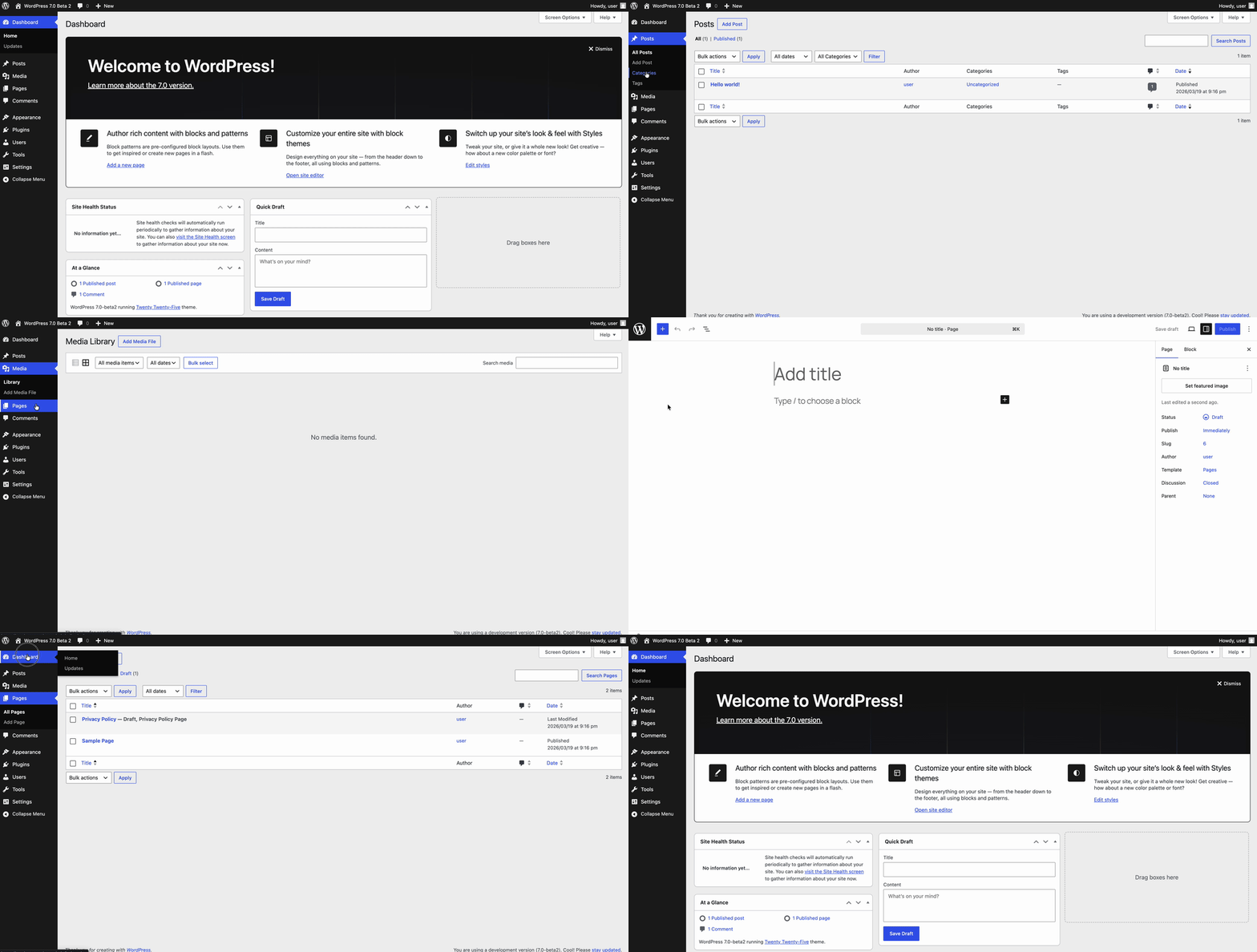
Sounds good on paper. In practice, the colors are jarring. I’m serious. The community says it outright: white screens between page transitions, eye-searing colors. Developers who install custom admin themes for their clients breathed a sigh of relief. Everyone else — not so much.
Smooth transitions between admin pages are something nobody asked for. The WordPress admin is a work tool. I don’t need an animation when I switch from “Posts” to “Pages.” I need it to work fast and predictably. These view transitions are like putting neon underglow on a work van. Pretty? Maybe. Necessary? No.
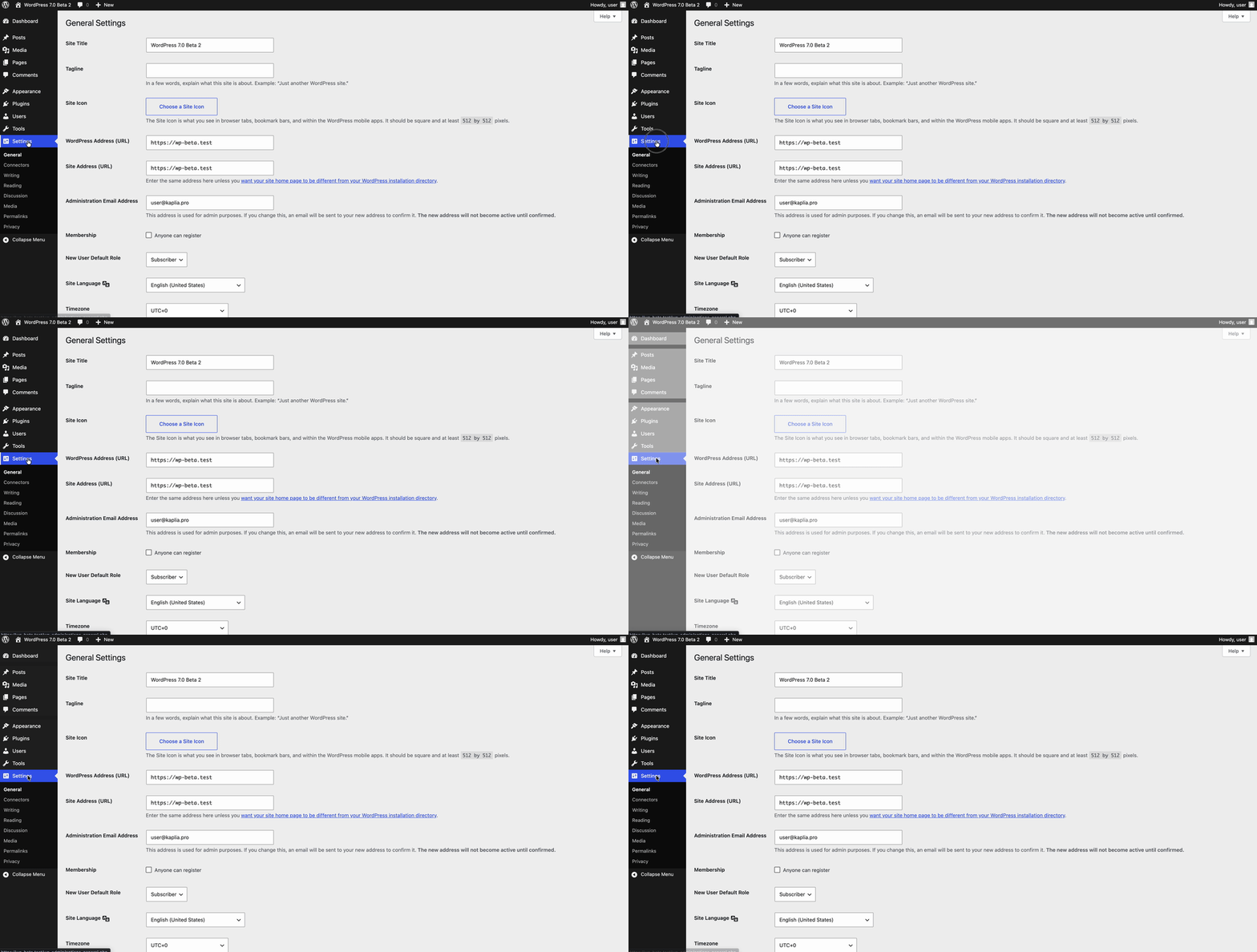
The good news is that custom admin themes still work. For client projects I always install a branded admin theme, so this will barely affect me. But for anyone working with the default interface, it’s going to be quite a surprise.
Gutenberg in an iframe — finally
Now this is genuinely good news. WordPress 6.9 started moving the editor into an isolated iframe, but only for blocks with apiVersion 3. In 7.0, the transition is complete.
Why does it matter? Because until now, styles from the theme, plugins, and the admin itself all blended into one mess inside the editor. CSS conflicts between a theme and Gutenberg are a rite of passage for every WordPress developer. The iframe isolates the editor from the rest of the admin: a clean sandbox, no CSS conflicts. For custom WordPress development, that means less time debugging style issues and more predictability. It should have been done two years ago — but better late than never.
Collaborative editing: Google Docs for WordPress?
WordPress 7.0 introduces real-time collaborative editing. Several people can work on the same post at once, see each other’s cursors, and leave comments via Notes. Sync runs over HTTP polling, with WebSocket as an option.
The community is already joking: “Probably so the client can break the layout in real time and get in the developer’s way.” And you know what — it’s true. That’s exactly how it will be used.
Honestly, I don’t know how useful this will be on real projects. Notes, which shipped in 6.9, has already had an authorization bypass vulnerability — it was patched in 6.9.4. Collaboration sounds like a feature for big editorial teams with dozens of authors. For a typical WordPress site with one or two content managers, it’s massive overkill.
But I’m not writing it off. It needs testing on real projects with real clients — seeing how it behaves under load, on a slow connection, with conflicting edits. For now: interesting, but no euphoria.
AI in the core: Settings → Connectors
WordPress 7.0 adds a new Settings → Connectors page for hooking up external AI providers. OpenAI, Claude, Gemini — all through a single interface. Plus the WP AI Client, a unified API for working with any provider from plugins and themes.
Someone in the community wrote: “Everyone’s trying to jump on the ‘We need AI, who cares what for’ bandwagon. I have a feeling I’ll end up ripping it out just to keep the site stable.” I understand the skepticism. But I see it from a different angle.
Over the past year I’ve built several AI tools for my clients: automatic content translation, text generation, post creation, even an AI assistant with a full RAG pipeline. I’ve wired up Claude, OpenAI, and Gemini — and every time I wrote the integration from scratch or through my own plugins. Every time: a different request format, a different way to store keys, different response-handling logic.
If WordPress offers a single, standardized way to work with AI providers, it will simplify development. Instead of every plugin reinventing the wheel for storing API keys and routing requests, there will be one interface. One hook. One place to configure it all.
The open question is the implementation. Abilities API, Client Side Abilities, Connectors UI — that’s three new abstractions in two minor releases. Isn’t that a lot? Time will tell. But the idea itself — built-in AI infrastructure — is the right one.
PHP-only blocks: the best part for developers
This is the feature I’m itching to get my hands on. WordPress 7.0 lets you register blocks entirely in PHP. No JavaScript. No React. No build step. No npm install. One register_block_type() call — and the block shows up in the editor.
Here’s how it works: you describe the block’s attributes in PHP, add the autoRegister flag to the supports array, point to a render_callback — and WordPress automatically generates a settings panel in the inspector. String attributes become text fields. Booleans become toggles. Enums become dropdowns. All without a single line of JavaScript.
For context: right now, to create even the simplest custom block, you have to write block.json, build a React component for the editor, set up a build with @wordpress/scripts, and only then add the PHP render — or take a workaround through Advanced Custom Fields, which is what I do today. For a server-rendered block like a CTA banner or an author box, going the block.json route is a disproportionate amount of work.
PHP-only blocks remove that barrier entirely. One PHP file. One function. No build process. For WordPress developers who live in PHP and don’t want to dive into the React ecosystem, this is a breakthrough.
There are limitations. No InnerBlocks support — no nested blocks. No rich-text editing right in the editor — the preview renders via ServerSideRender, and every attribute change goes through the REST API. No picking media through the standard Media Library picker. For complex interactive blocks, this isn’t the tool.
But for 80% of the custom blocks I build on client projects — info banners, CTA sections, contact blocks, custom quotes — the PHP-only approach covers the need completely. Less code, fewer dependencies, faster development.
New blocks and editor improvements
Beyond the architectural changes, WordPress 7.0 adds new core blocks and improves existing ones:
- Breadcrumbs and Icons — finally in core, no third-party plugins needed
- Navigation Block — rewritten, with support for mobile overlay menus
- Cover Block with video backgrounds — you can set a video as a section’s background
- Grid Block — responsive by default
- Gallery with a lightbox — view images in a modal
- Responsive block visibility — hide specific blocks on mobile or desktop, out of the box
About that responsive visibility: I couldn’t find it right away. Other developers report the same — it’s nowhere to be seen in the playground. Either it only works for some blocks, or it needs extra setup. I’ll keep testing.
Video backgrounds for the Cover Block and custom CSS right in the block panel — that’s what used to require plugins like Stackable or GenerateBlocks. If it works reliably, that’s one less plugin on every project, and that alone is a win!
Image processing in the browser
WordPress 7.0 adds client-side media processing: images are resized and compressed right in the browser before being uploaded to the server. Less load on the hosting, support for newer formats.
On paper, wonderful. In practice, it needs testing. How does it behave on low-end devices? What about huge images? Will it lock up the browser? I don’t have answers yet, but for clients who upload photos straight from their phone without any optimization, it’s a potentially useful feature.
Security: 6.9.4 as a reality check
While everyone’s busy discussing 7.0, WordPress 6.9.4 quietly shipped on March 11 — a security patch. Three vulnerabilities: path traversal in PclZip, an authorization bypass in Notes, and XXE in the getID3 library. Notably, some of them couldn’t be closed on the first try — 6.9.2 and 6.9.3 didn’t fully fix the problem.
It’s a reminder: new features are nice, but the security of existing code comes first. If you haven’t updated to 6.9.4 yet — do it right now!
The bottom line

WordPress 7.0 is a gut renovation. Walls are coming down, pipes are being swapped, wiring is being redone. Living in it right now is uncomfortable. But if they pull it off, a year from now we’ll be grateful for these changes.
The release lands April 9. We’ll see.